
Getting started
Markydowny renders markdown files, beautifully. Use it on the web at markydowny.com, or install the Mac app so .md files open in it when you double-click them. The two share the same viewer, and in both your files stay on your device.
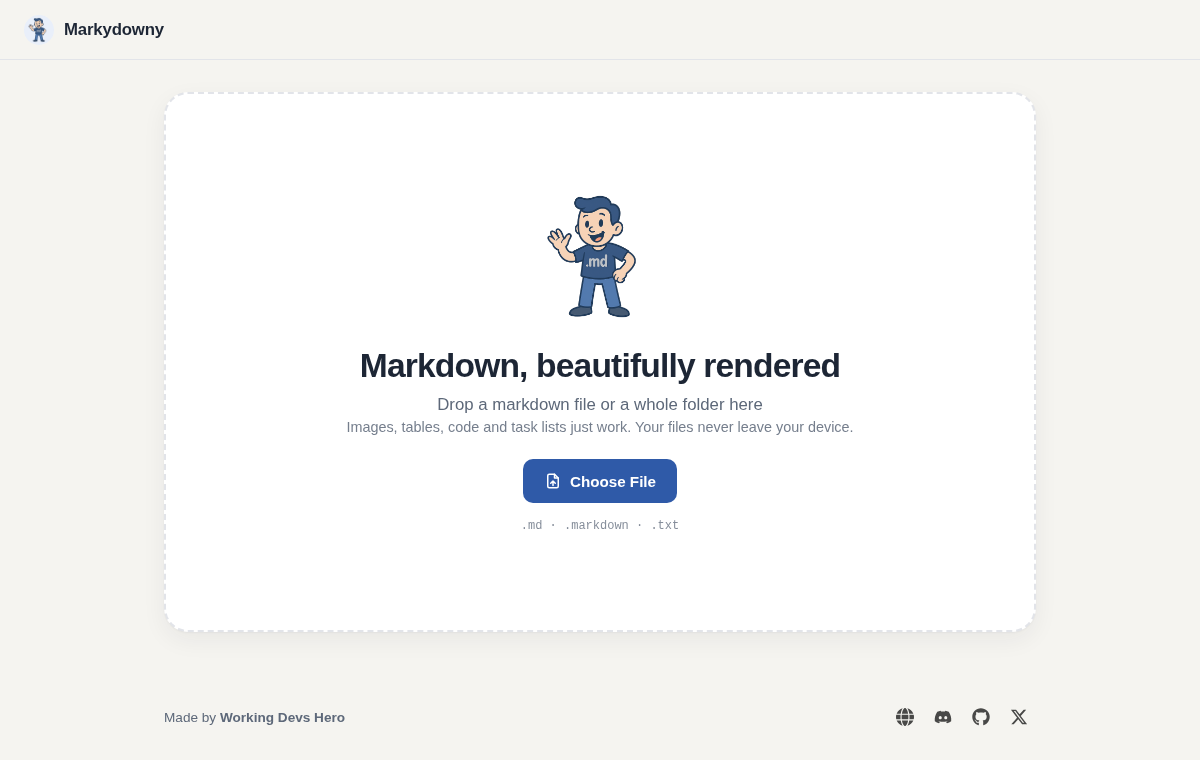
#On the website
Open markydowny.com and either:
- drop a
.md,.markdownor.txtfile onto the page, or - click Choose File (or press Enter on the drop zone) and pick one, or
- click New file to start an empty document in the editor.
The document renders straight away: headings, lists, tables, task lists, fenced code and images. Open another in the header takes you back to the drop zone, and the fullscreen button (⛶) hides everything but the document.
Nothing is installed and nothing is uploaded. The page reads the file in your browser, works offline once it has loaded, and has no analytics. See Privacy.
In Chrome, Edge and other Chromium browsers, a file you choose or drop keeps updating when it changes on disk. See Live reload & Follow.
#In the Mac app
Download the app, then open markdown files the way you open anything else on a Mac:
- double-click a
.md,.markdown,.mdown,.mkdor.mkdnfile in Finder (after making Markydowny the default, see Download), - drag files or folders onto a Markydowny window or its Dock icon,
- use File > Open… (⌘O), or
- from a terminal:
open -a Markydowny README.md.
File > New (⌘N) starts a new file in the editor.
File > Open Recent lists the last ten files and folders you opened, newest first, and keeps them after you quit. Clear Menu at its bottom empties it.
Every document opens in its own native tab, and a document that's already open is brought to the front instead of opening twice. See Tabs & windows.
The app always live-reloads: when another editor or an AI agent changes the file, the window re-renders within a second and keeps your place.
#Folders
Drop a whole folder to read the markdown inside it.
- With one markdown file in the folder, it opens straight away.
- With several, Markydowny lists them (Multiple markdown files found) so you can pick one. Cancel goes back to the drop zone.
- In the Mac app, the list also offers Open all N as tabs (for up to 50 files) and Watch this folder, which follows whichever file changes next. See Watching Claude Code.
The Mac app skips hidden folders, node_modules and target. The website reads every folder inside the one you drop, those included.
#Relative images and links
Images with relative paths, like  or ../assets/logo.svg, are found next to the document:
- On the web, drop the folder rather than the single file. The browser only gives the page the files you hand it, so a single dropped file can't reach the images beside it.
- In the Mac app, relative paths resolve from the file's location on disk, however you opened it.
Links to other markdown files work too. On the web they open the linked file from the dropped folder; in the Mac app they open it in a new tab. Links to websites open in your browser, and in the app a link to any other kind of file shows it in Finder rather than running it.
Click an image to see it full size; Esc closes it.
#Light and dark
Markydowny follows your system's appearance, on the web and in the app. There's nothing to set.
#Next
- Live reload & Follow: watch a document change as it's edited.
- Editor: edit the markdown and save it.
- Keyboard shortcuts.